

How to Build a Gaming PC in 2026: Parts, Prices and Steps
Learn how to build a gaming PC in 2026: three example builds with realistic UK prices amid soaring RAM costs, step-by-step assembly and first-boot setup.
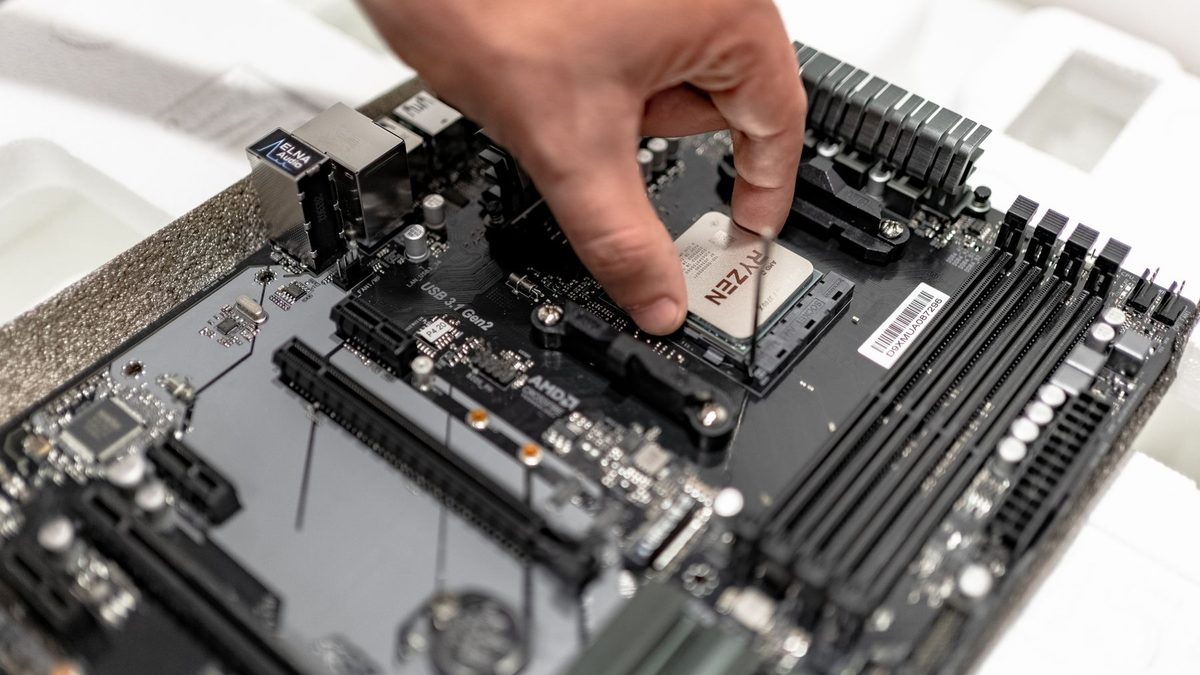
Learning to build a gaming PC is still one of the most satisfying things you can do with a screwdriver. You choose every part, avoid the shortcuts some prebuilt makers take, and end up with a machine that is easy to upgrade.
Late 2026 is an unusual time to build, though, with memory and graphics card prices surging. Here are realistic example builds, assembly steps and first-boot advice.
Key takeaways
- RAM and graphics cards now take a far bigger share of the budget, so price those first.
- Match the CPU and graphics card to your monitor's resolution and refresh rate.
- On first boot, update the BIOS if needed, enable EXPO or XMP, and install the latest drivers.
PC building by the numbers
The squeeze started early in the year. In February, TrendForce forecast that PC DRAM contract prices would more than double in a single quarter, a record. It now expects NAND flash, the memory inside SSDs, to rise another 15-20% in the final quarter. Steam's survey also shows 1080p remains the most common resolution, at 50.23% of primary displays.
Start with your monitor and budget
Your screen decides what you need. A 1080p display is happy with an entry-level card, 1440p needs a solid mid-range card, and 4K or very high refresh rates demand a high-end GPU. Set a total budget, then price the graphics card and memory first, because those two parts move the most.
Balance the CPU and graphics card
At 1440p and 4K, the graphics card does most of the work, so it deserves the biggest slice of your budget. The processor matters more for high-refresh esports, strategy and simulation games.
- Avoid extremes: a flagship CPU with an entry-level card wastes money, and vice versa.
- Six cores is the floor for a new gaming build; AMD's X3D chips, with extra cache, are especially strong in games.
- Think about upgrades: AMD's AM5 platform makes a later CPU upgrade simpler, while Intel's Core Ultra 200S chips use the LGA 1851 socket.
Three example builds for late 2026
Prices below are approximate UK figures at the time of writing, based on PriceSpy listings and TechSpot's lowest UK graphics card prices for October. They change daily, so check before you buy.
Budget 1080p build (around £1,150-£1,300)
| Part | Example | Approx. price |
|---|---|---|
| CPU | AMD Ryzen 5 7600 (cooler included) | £155-£165 |
| Motherboard | B650, e.g. MSI B650 Gaming Plus WiFi | £115-£135 |
| Memory | 16GB (2x8GB) DDR5-5600 | £240-£280 |
| Storage | 1TB PCIe 4.0 NVMe, e.g. Crucial P310 | £125-£160 |
| Graphics | RTX 5060 8GB or RX 9060 XT 8GB | £390-£400 |
| Power supply | 750W 80 Plus Gold, e.g. Corsair RM750e (2025) | £80-£90 |
| Case | Airflow case, e.g. Phanteks XT Pro | £55-£70 |
Mid-range 1440p build (around £1,700-£2,000)
| Part | Example | Approx. price |
|---|---|---|
| CPU | AMD Ryzen 5 9600X | £165-£200 |
| Cooler | Thermalright Peerless Assassin 120 SE | about £30 |
| Motherboard | B650 or B850 ATX | £125-£190 |
| Memory | 32GB (2x16GB) DDR5-6000 | £385-£420 |
| Storage | 2TB PCIe 4.0 NVMe, e.g. Crucial P310 | £200-£250 |
| Graphics | Radeon RX 9070 or RX 9070 XT (16GB) | £640-£760 |
| Power supply | 750W 80 Plus Gold | £80-£90 |
| Case | e.g. Lian Li Lancool 207 | £60-£70 |
High-end 1440p and 4K build (around £2,450-£3,100)
| Part | Example | Approx. price |
|---|---|---|
| CPU | AMD Ryzen 7 9800X3D | £315-£400 |
| Cooler | 360mm AIO, e.g. Arctic Liquid Freezer III Pro 360 | £65-£85 |
| Motherboard | B850, e.g. MSI MAG B850 Tomahawk WiFi | £180-£200 |
| Memory | 32GB (2x16GB) DDR5-6000 | £400-£550 |
| Storage | 2TB PCIe 4.0 NVMe | £200-£250 |
| Graphics | RTX 5070 Ti or RTX 5080 (16GB) | £1,130-£1,420 |
| Power supply | 850W 80 Plus Gold, e.g. Corsair RM850e (2025) | £80-£95 |
| Case | Airflow mid-tower with 360mm radiator support | £60-£100 |
Notice that 32GB of DDR5 now costs more than a Ryzen 7 9800X3D. On a tight budget, 16GB is a reasonable stopgap.
How to assemble your PC
- Prepare: clear a table, grab a Phillips screwdriver and the motherboard manual. Touch the metal case to discharge static.
- Fit the CPU with the motherboard on its box. Lift the retention arm, align the triangle marker and lower the chip gently. Never force it.
- Install the RAM in the slots your manual recommends for two sticks, pressing until the clips click.
- Add the M.2 SSD to the primary slot, under its heatsink if there is one.
- Mount the cooler, removing any plastic film from its base and checking whether thermal paste is pre-applied.
- Install the motherboard in the case on its standoffs, fitting the I/O shield first if it is not built in.
- Fit the power supply and connect the 24-pin motherboard cable and the 8-pin CPU power cable.
- Connect the front panel: power switch, USB, audio and fan headers.
- Install the graphics card in the top full-length PCIe slot, screw it in and push its power connectors fully home.
- Tidy the cables, double-check every connection and close the case.
Do a quick test boot before the motherboard goes in the case. Fixing a problem on the bench is far easier than inside a fully cabled build.
First boot: BIOS, EXPO/XMP and drivers
- Be patient: DDR5 systems can sit on a black screen for a while during the first boot while the board trains the memory.
- Check the BIOS: press Delete or F2 to confirm the CPU, RAM and SSD are detected. Update the BIOS if your board's support page recommends it.
- Enable EXPO or XMP: memory runs at a slower default speed until you switch on the AMD EXPO or Intel XMP profile.
- Install Windows 11 and drivers: add chipset drivers from AMD or Intel, then the latest graphics driver from Nvidia, AMD or Intel.
- Set your refresh rate in Windows display settings so a high-refresh monitor actually runs at full speed.
Common mistakes to avoid
- Plugging the monitor into the motherboard instead of the graphics card.
- Leaving the protective film on the cooler.
- Using the wrong RAM slots or forgetting to enable EXPO or XMP.
- Not seating the graphics card's 16-pin power connector fully.
- Buying a cheap, unknown power supply to save a few pounds.
FAQ
Is it cheaper to build or buy a gaming PC in 2026?
It depends on current deals, so compare like for like. Building gives you full control over part quality and upgrades.
Do I need 16GB or 32GB of RAM?
16GB is still the most common amount on Steam and fine for a budget build. With prices this high, 32GB makes most sense for high-end gaming, streaming and heavy multitasking.
Do I have to update the BIOS?
Only if your board needs it to support your CPU or fix a known issue. Check the processor support list on the motherboard maker's website.
Need more help choosing parts? Browse our PC build guides and the latest memory and RAM advice.
Sources: OC3D DDR5 pricing, TrendForce Q4 2026 memory prices, TrendForce Q1 2026 memory prices, TechSpot GPU pricing Q4 2026, Hardware Busters (Steam survey), PriceSpy UK
 Hardware Deals
Black Friday Hardware Deals 2026: How to Spot Genuine Bargains
Black Friday hardware deals land on 27 November 2026. Learn to spot fake "was" prices, use price trackers and know your UK return...
Read article
 CPU & GPU Rankings
CPU and GPU Rankings Explained: How to Read Tier Lists
CPU and GPU rankings explained: how gaming and productivity benchmarks build tier lists, why results change with resolution, and h...
Read article
 Best Hardware Picks
Best PC Upgrades for the Money in 2026, Ranked by Impact
The best PC upgrades for the money in 2026, ranked by impact per pound: SSDs, RAM, monitors, GPUs, ergonomics, Wi-Fi, surge protec...
Read article