

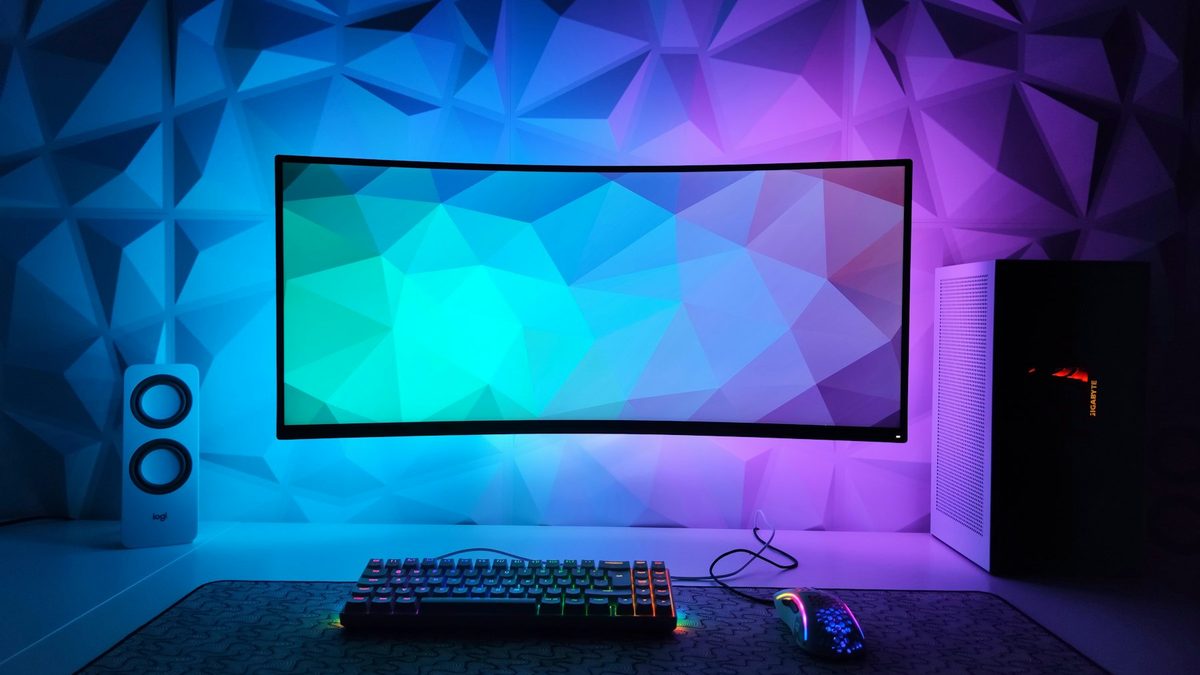
Your monitor is the part of your PC you look at for hours every day, yet it is often the last thing people think about. Spec sheets full of hertz, nits and acronyms do not help. This guide explains how to choose a monitor in 2026 by focusing on the handful of specs that actually change what you see.
Key takeaways
- Match resolution to size: 27-inch 1440p is the sweet spot for most people, and 4K shines at 27 to 32 inches.
- OLED offers the best contrast and motion clarity, but needs a little care to avoid burn-in.
- Ignore vague "HDR" claims; look for a VESA DisplayHDR 600 or True Black badge as a minimum.
The monitor market by the numbers
Full HD is still the most common resolution on Steam, but 1440p is catching up fast. OLED is booming too: TrendForce says OLED reached 2.1% of all monitor shipments in 2025 and expects that to rise to 5.4% by 2028.
Size and resolution: think pixel density
Resolution on its own tells you little. What matters is pixel density, measured in pixels per inch (PPI). The same 1080p image looks crisp on a 24-inch screen and soft on a 27-inch one, because the pixels are stretched over a larger area.
- 24-inch 1080p: about 92 PPI. Fine for budget office and esports setups.
- 27-inch 1440p: about 109 PPI. Noticeably sharper text and still easy for a mid-range graphics card to drive.
- 34-inch ultrawide 3440x1440: about 110 PPI, with extra width for timelines, spreadsheets and racing games.
- 27-inch 4K: about 163 PPI. Razor-sharp, but you will usually need Windows scaling at 150%.
- 32-inch 4K: about 138 PPI. A roomy, sharp option for creators and big-screen gamers.
Higher resolutions demand more from your graphics card in games. A 4K panel paired with an entry-level GPU can feel slower than a well-matched 1440p screen.
Refresh rate and response time
The refresh rate, in hertz (Hz), is how many times per second the screen updates. A 60Hz panel is fine for documents, but 120Hz to 165Hz makes scrolling and gaming feel far smoother. Competitive players now choose from 240Hz, 360Hz and even faster panels.
Response time is how quickly pixels change colour. Slow pixels leave smeary trails behind moving objects, and headline "1ms" claims on LCDs often rely on aggressive overdrive that causes halos. OLED pixels switch almost instantly, which is a big reason for its popularity with gamers.
Make sure your monitor supports adaptive sync (FreeSync or G-Sync Compatible), which matches the refresh rate to your frame rate to prevent tearing.
Panel types: IPS, VA, OLED and Mini-LED
IPS
The all-rounder. IPS offers accurate colours and wide viewing angles, ideal for office work and photo editing. Its weakness is contrast: blacks look greyish in a dark room.
VA
VA panels deliver deeper blacks and higher contrast than IPS, making them good value for films and slower-paced games. Cheaper models can smear in dark scenes because their pixels transition more slowly.
OLED and QD-OLED
Each pixel makes its own light, so blacks are truly black and contrast is effectively infinite. QD-OLED adds a quantum-dot layer for very vivid colours. The trade-offs are lower full-screen brightness than the best LCDs, and the risk of burn-in.
Mini-LED
Mini-LED is an LCD with hundreds or thousands of tiny backlight zones that dim independently. It gets much brighter than OLED, which suits bright rooms and HDR highlights, with no burn-in worry. You may notice faint halos around bright objects on dark backgrounds.
Looking after an OLED monitor
Burn-in happens when static elements, such as a taskbar or game HUD, wear some pixels faster than others. Modern panels include safeguards, and since 2024 brands including ASUS and MSI have offered burn-in cover of up to three years on selected models, as Tom's Hardware reported. Read the terms, as some warranties require protection features to stay switched on.
- Leave the monitor's pixel refresh and pixel-shift features enabled.
- Let the screen go to sleep after a few minutes of inactivity.
- Auto-hide the taskbar and use a dark theme or moving wallpaper.
- Keep desktop brightness moderate; save peak brightness for HDR content.
Do not switch an OLED off at the wall straight after use. Many panels run their pixel refresh while in standby.
HDR certifications that mean something
Almost every monitor claims "HDR", but proper HDR needs high brightness and good contrast. VESA's DisplayHDR programme, updated to version 1.2 in May 2024, tests both. Standard tiers run from DisplayHDR 400 to 1400, and OLED-focused True Black tiers run from 400 to 1400.
- DisplayHDR 400: entry level, with little real HDR impact.
- DisplayHDR 600 and 1000: version 1.2 requires local dimming at these levels, so you get genuine highlights.
- True Black 400 and 500: common on OLEDs, with extremely deep blacks.
Connectivity: DisplayPort, HDMI and USB-C
- DisplayPort 2.1: the top UHBR20 mode carries up to 80Gbps over certified DP80 cables, according to VESA. Useful for 4K at very high refresh rates.
- HDMI 2.1: up to 48Gbps, ideal for PS5 and Xbox Series X at 4K 120Hz. The newer HDMI 2.2 specification doubles that to 96Gbps.
- USB-C with Power Delivery: one cable carries video, data and charging for a laptop. Check that the wattage, such as 65W or 90W, matches your laptop charger.
Ergonomics
A stand that adjusts for height, tilt and swivel is worth more than a few extra hertz. Position the top of the screen at or just below eye level, roughly an arm's length away. If the stand is basic, a VESA mount lets you add a monitor arm later.
Which monitor should you buy?
| Use | Size | Resolution | Refresh rate | Panel |
|---|---|---|---|---|
| Office and study | 24-27 inch | 1080p (24 inch) or 1440p (27 inch) | 60-120Hz | IPS, ideally with USB-C |
| Photo and video editing | 27-32 inch | 4K | 60-144Hz | IPS or OLED with wide colour gamut |
| Competitive gaming | 24-27 inch | 1080p or 1440p | 240-500Hz | Fast IPS or OLED |
| Immersive gaming | 27-34 inch | 1440p, ultrawide or 4K | 144-240Hz | OLED, QD-OLED or Mini-LED |
| Films and consoles | 27-32 inch | 4K | 120Hz+ | VA, OLED or Mini-LED with HDMI 2.1 |
FAQ
Is 1440p still worth it in 2026?
Yes. At 27 inches it offers a clear sharpness upgrade over 1080p while staying achievable for mid-range graphics cards at high frame rates.
Should I worry about OLED burn-in?
For mixed use, modern safeguards make it unlikely, but if you leave the same static windows on screen all day, IPS or Mini-LED is the safer choice.
Do I need DisplayPort 2.1?
Only for very high resolutions and refresh rates, such as 4K at 240Hz without compression. For most setups, DisplayPort 1.4 or HDMI 2.1 is plenty.
Ready to shop? Compare our latest monitor guides, and make sure your graphics card can keep up with your new screen in our GPU coverage.
Sources: Steam Hardware & Software Survey, TrendForce Q2 2026 OLED monitors, TrendForce OLED monitor outlook, Tom's Hardware, VESA DisplayHDR, VESA DisplayPort 2.1, HDMI Forum
 PC Build Guides
How to Build a Gaming PC in 2026: Parts, Prices and Steps
Learn how to build a gaming PC in 2026: three example builds with realistic UK prices amid soaring RAM costs, step-by-step assembl...
Read article
 Hardware Deals
Black Friday Hardware Deals 2026: How to Spot Genuine Bargains
Black Friday hardware deals land on 27 November 2026. Learn to spot fake "was" prices, use price trackers and know your UK return...
Read article
 CPU & GPU Rankings
CPU and GPU Rankings Explained: How to Read Tier Lists
CPU and GPU rankings explained: how gaming and productivity benchmarks build tier lists, why results change with resolution, and h...
Read article